

|
The "Organizing Engineering Presentations" learning environment will help you to understand the audience's expectations and perspectives, plan and structured presentation outlines, and to deliver an effective, well organized presentation. A general overview of the module and basic instructions are provided below. To skip the overview and begin the OEP module, go to http://www.columbia.edu:8888/engpres/index.html . |
|
Getting Started: Logging-In |
|
|
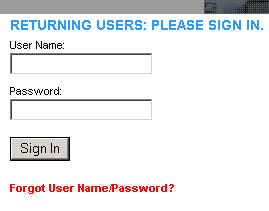
To access the Organizing Engineering Presentations module, you must either Log-In with your User Name and Password by entering the information into their respective fields and clicking the "Sign In" button. If you forgot your User Name/Password, click on the link which reads "Forgot User Name/Password?" and enter your e-mail address. Your log-in information will then be sent to that address. |
 |
|
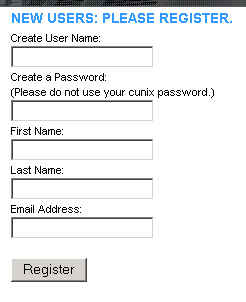
If you are a New User, you must register yourself with the system. Enter the requested information (username, password, first name, last name, and e-mail address) into the text fields and click the "Register" button to complete registration. |
 |
|
|
|
Selecting a Presentation |
|
|
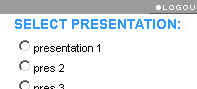
After logging-in, you can select an existing presentation from the list |
|
|
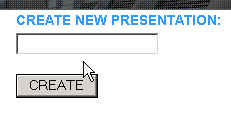
or create a new presentation |
|
|
|
|
Working With a Presentation |
|
|
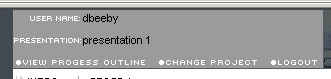
The top of the screen will display your username, current presentation, and options that allow you to view your progress outline, change the active project, and logout. |
 |
|
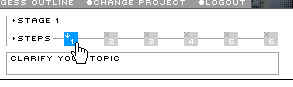
Directly under that display is a timeline of both Stage 1, which involves thinking about the presentation, |
 |
|
and Stage 2, where you develop your progress outline. |
 |
|
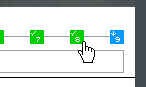
Clicking on any of the steps in the timeline will take you directly
to that step. |
 |
|
The main body of the OEP is divided into three parts:

| |
|
|
|
Progress Outline |
|
|
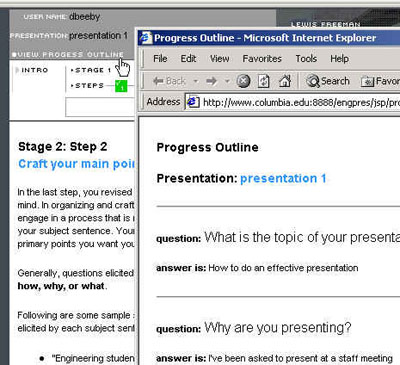
The Progress Outline contains all of the information that you have entered throughout the module and is a useful tool which can be used to create a presentation. To view the Progress Outline, click on the "View Progress Outline" link at the top of the page; this will generate a new window outlining your presentation with the information entered thus far displayed in a simple HTML page. |
 |
|
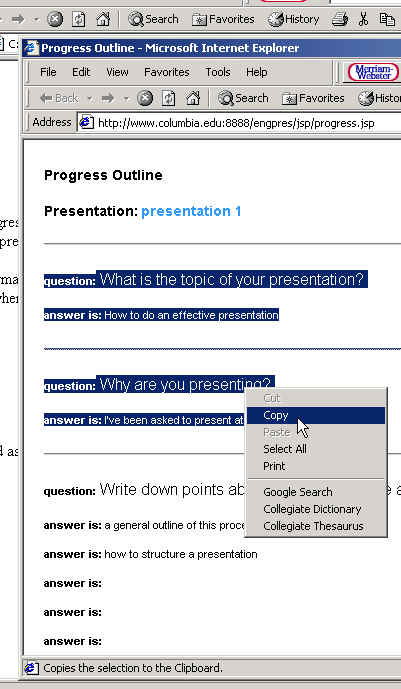
The information contained in the Progress Outline can then be copied and pasted into whatever program you are working with. To do this:
|
 |
|
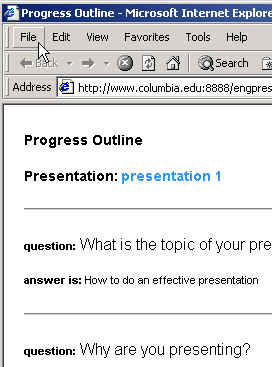
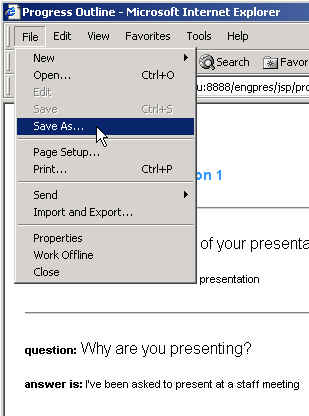
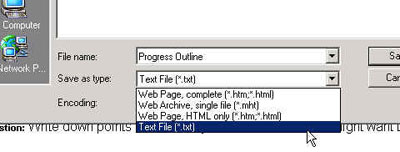
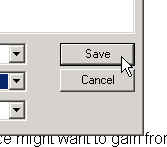
Or, the entire Progress Outline can be saved as a text file for text editing/word processing. To save the Progress Outline as a text file:
|
1. 
|
2.  |
|
3.  |
|
4.  |
|
5.  |
|