Getting Started: Logging-In
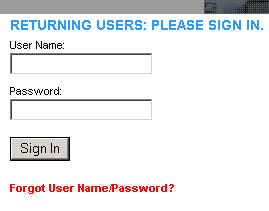
To access the Organizing Engineering Presentations module, you must either Log-In with your User Name and Password by entering the information into their respective fields and clicking the "Sign In" button.
If you forgot your User Name/Password, click on the link which reads "Forgot User Name/Password?" and enter your e-mail address. Your log-in information will then be sent to that address.
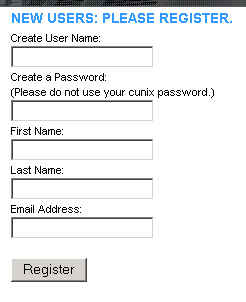
If you are a New User, you must register yourself with the system.
Enter the requested information (username, password, first name, last name, and e-mail address) into the text fields and click the "Register" button to complete registration.
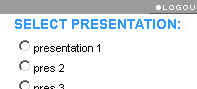
Selecting a Presentation
After logging-in, you can select an existing presentation from the list
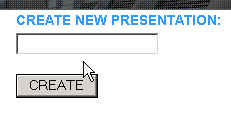
or create a new presentation
Working With a Presentation
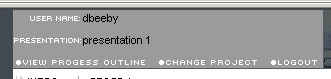
The top of the screen will display your username, current presentation, and options that allow you to view your progress outline, change the active project, and logout.
Directly under that display is a timeline of both Stage 1 (which involves thinking about the presentation)
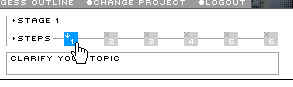
And Stage 2 (where you devlop your progress outline)

Clicking on any of the steps in the timeline will take you directly to that step.
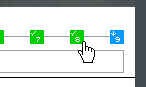
When you have completed a step, that step will turn green.
The main body of the OEP is divided into three parts:
- The left side of the window displays information regarding the current step.
- The upper-right portion of the window will usually contain an area where the user can input information.
- The bottom-right portion of the window will sometimes contain a reflective exercise.

Progress Outline
Clicking on the "View Progress Outline" link at the top of the page will generate a new window outlining your presentation with the information entered thus far.
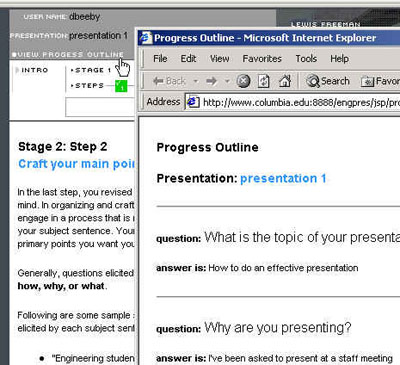
The Progress Outline is a useful tool which can be used to create a presentation.
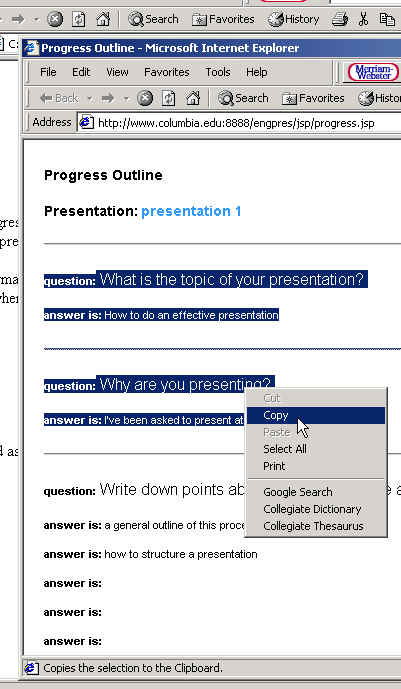
The information entered in the inputs of the module will be displayed in a simple, generated HTML page. The information contained in the Progress outline can be copied and pasted into whatever program you are working with by:
- Highlighting the desired text
- Right-clicking on your selection
- Selecting "copy" from the pop-up menu
- Pasting into the desired destination
Or, the entire Progress Outline can be saved as a text file for text editing/word processing.
This can be done by:
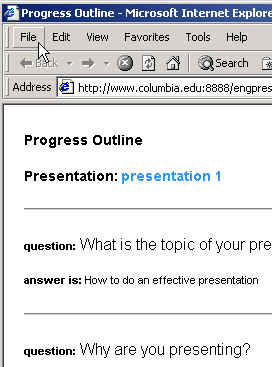
- Opening the "File" drop-down menu at the top of the window
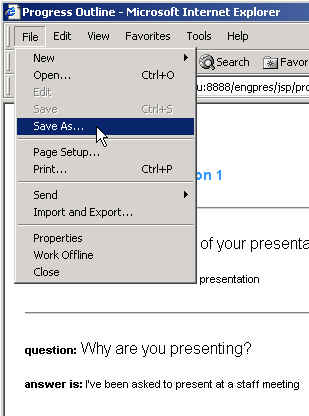
- Selecting the "Save As..." option
- Entering a file name and destination
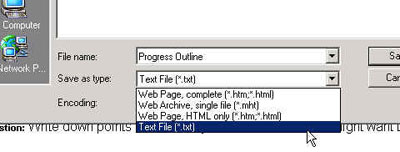
- Selecting "Text File (*.txt)" from the "Save As Type:" drop-down menu
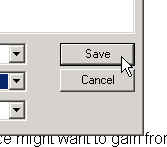
- Clicking the "Save" button