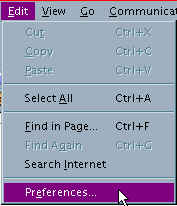
To configure your Netscape mail follow these steps. You can follow the text or the graphics.
1) From Netscape, select Edit, then Preferences
2) In the Preferences window, under the Mail & Newsgroups category, select Identity.

3) Fill in the required information.
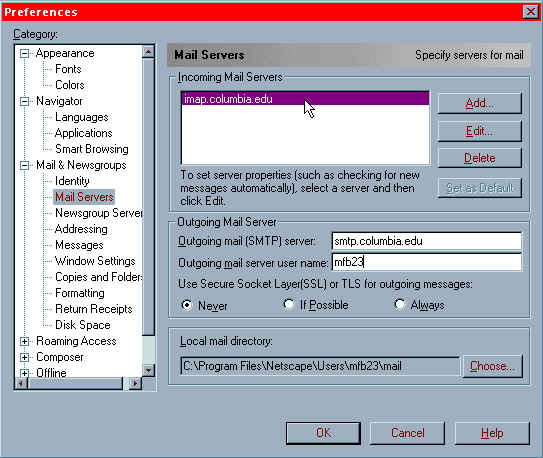
4) Next, go to the Mail Servers category

5) Under Incoming Mail Servers, click Add.

6) Under Server Name, type imap.columbia.edu. Change Server Type to POP3 Server. For User Name type in the first part of your e-mail address (example: [email protected] -- my user name is mfb23). The window should look like this.

7) Then Click OK
8) Finally, under Outgoing Mail Server, type smtp.columbia.edu. Your Outgoing Mail Server User Name is the same as your user name from above. Your preferences window should look like this.
9) Click OK.
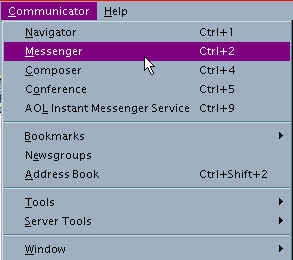
10) To run Netscape Messenger, go to Communicator, and then Messenger
Click here to learn how to subscribe to the class newsgroup.