Help
Topics
Logging into the Media Machine
Upon Entering the Media Machine, there will be a space to enter a user id and password. Click it LOG IN to enter the Media Machine . To obtain a user id and password contact John Broughton @ [email protected].
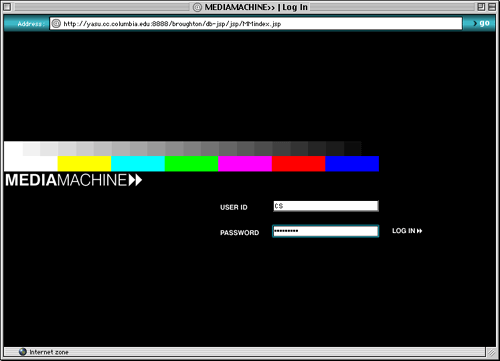
Login page
[ Back to Top ]
Navigation

Navigation menu
There are seven navigation items that will help you access the information in the Media Machine. Please note that students are restricted to accessing the Introduction, Help, Search, Credits and Feedback sections of the site. Only administrators can access the Edit Record or Add Record features.
[ Back to Top ]
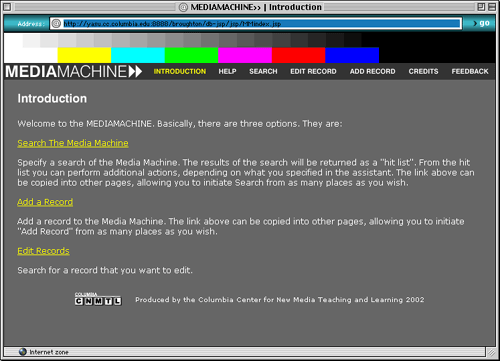
Introduction page
On the introduction page, there is a brief introduction to the Media Machine and the three features available.
1. Search the Media Machine: This option is available to both students and administrators. Students should immediately advance to the search page by clicking on Search the Media Machine.
2. Add a Record: This option is only available to administrators. This feature allows an administrator to add a new entry to the Media Machine.
3. Edit Records: This option is only available to administrators. This feature allows an administrator to search for a record to edit.
[ Back to Top ]
You are currently looking at the Help
section for the Media Machine. This help section can assist with logging
into the Media Machine, understanding the navigation, how to search, edit
and add film entries, technical support and system requirements.
[ Back to Top ]
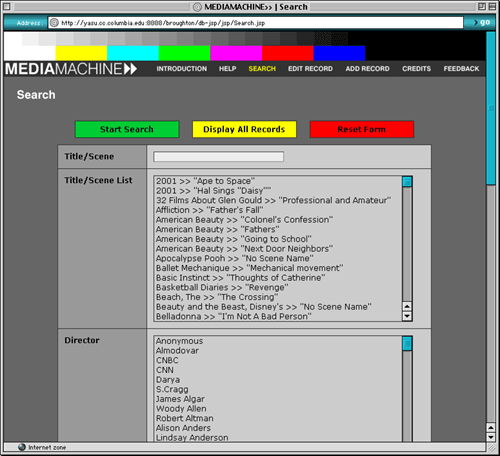
Search page
Simple Searching
There are a few ways you can search for entries in the Media Machine. The most popular way is to select one or more film/scene titles from the Title/Scene List. You can select an entry by simply clicking on the title/scene and click the green Start Search button.
To view all the records in the Media Machine simply click the yellow button labeled Display All Records.
If you would like to reset the choices made on the search page, click the red button labeled Reset Form.
Advanced Searching
The advanced search options are:
- Title/Scene: Select from a list of titles/scenes or type in a film title.
- Director: Select from a long list of directors or type in a director.
- Keywords: Select from the keyword list or type in a keyword.
- Themes: Select from the list of themes or type in a theme.
- Sort by: Title/scene or author in descending or ascending order.
- List View: View the results in a detailed format or simple format. Detailed view displays all of the available information for each film. Simple view display the title, scene, director, theme, video, image sequence and access to the detailed view.
- Records Per Page: The minimum records per page is between 1 and 5, the maximum number of records per page is 20.
- Match: Any words (OR)/Any words (AND)
Search Results
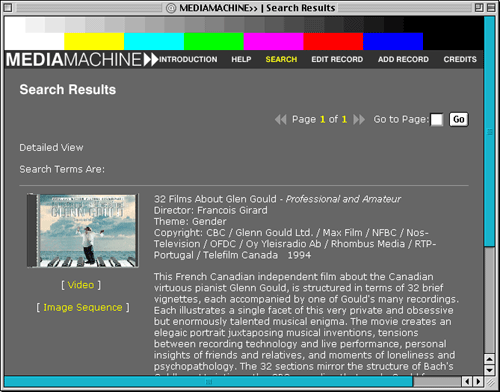
Detailed search results page
The detailed search results page displays all of the available information about each film. The yellow video link will launch the RealPlayer and begin playing the film segment.
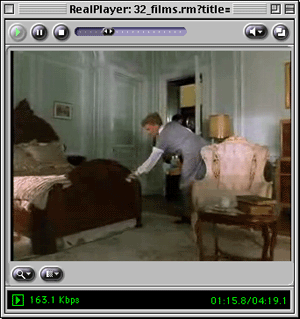
RealPlayer window
The image sequence link will launch a new window containing carefully chosen frames from the referenced film segment.
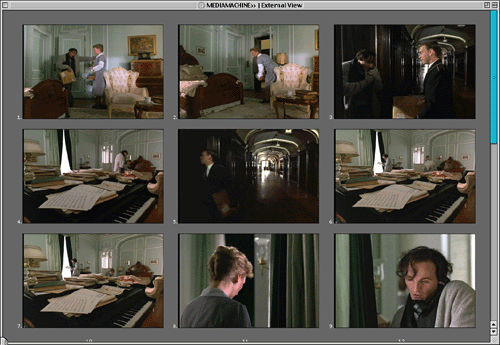
Image sequence window
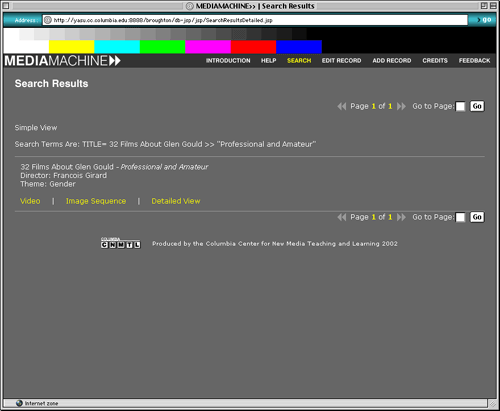
Simple search results page
The simple search results page displays the basic information
for each film: Title, scene, director, theme(s), video, image sequence,
and access to the detailed view.
To edit a record simply click Edit Record from the navigation menu. The Search for Records to Edit page will appear. Simply select the film to edit and click on the green button labeled Start Search.
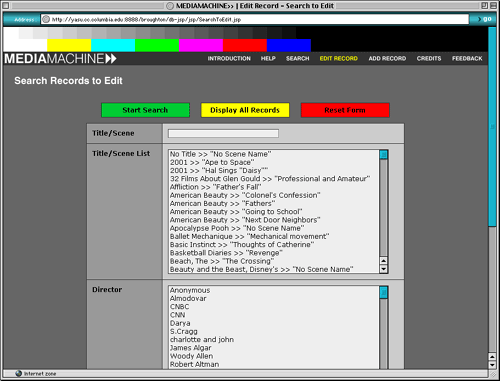
Search to edit record page
After searching for a record to edit, a Search Detail to Edit page will appear with some general information about the film. At this point you can edit the detail of the record by clicking the Edit This Detail link.
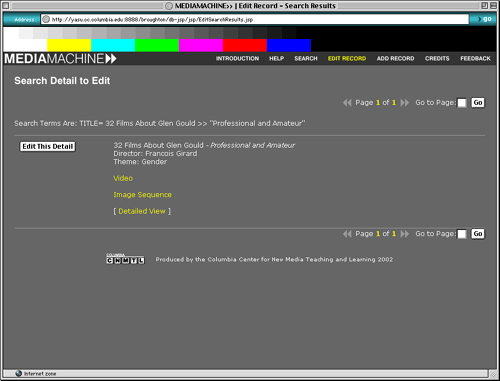
Search detail to edit page
To make changes to a record just replace any of the text in the title, scene, author, copyright holder, copyright data, plot, screenplay, description, commentary, questions, video file, thumbnail file, image sequence prefix, number in sequence, keywords, themes and resources. Click the green button labeled Edit Record to save you changes. The Reset button will clear all the changes made to a record. This is particularly useful if a field in a record was edited unintentionally. The Delete Record button should only be used if you would like to delete a record permanently.

Edit record page
[ Back to Top ]
To add a record simply click Add Record from the navigation menu.
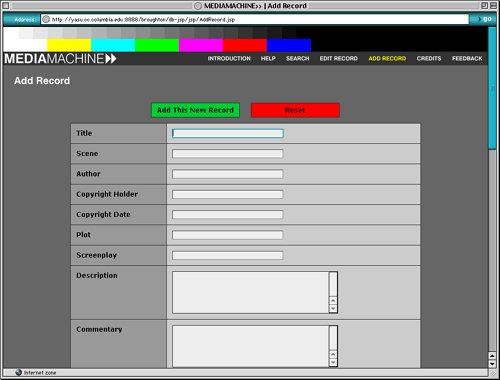
Add record page
Fill out the following fields to add a new record:
Title
Scene
Author
Copyright Holder
Copyright Date
Screenplay
Description
Commentary
Questions
Image Sequence Prefix
Number in Sequence
Keywords: Adding new keywords, Adding existing keywords
Themes: Adding new themes, Adding existing themes
Descriptions and Resources: Description of Resource, Resource URL
Select Add This New Record to save your changes to the Media Machine. To reset the Add New Record form select Reset.
[ Back to Top ]
This button will link to the key contributors to the construction
of the latest version of the Media Machine.
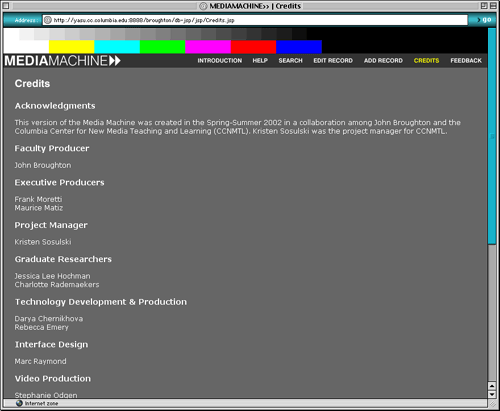
Credits page
[ Back to Top ]
This button will link to a feedback page where you can submit your comments and experiences using the Media Machine. Please take a moment to fill out the feedback form. Your comments are sincerely appreciated.
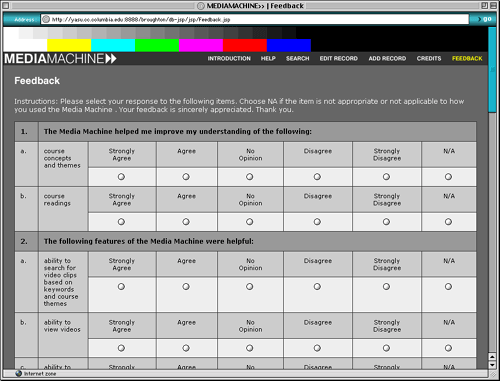
Feedback page
[ Back to Top ]
System Requirements
The following software, hardware, plug-ins and network connection are required to experience this site:
1. Browser: Internet Explorer versions 4.x or later. Your browser must have JavaScript enabled.
2. Real Player G2 or later. Download Real Player at http://www.real.com
3. Network Connection: The recommended minimum connection is 56K modem with throughput of 44 Kbps or more. A faster connection is strongly recommended. Access to the Media Machine from on campus machine is ideal.
4. Headphones: Much of the content in the Media Machine requires you to listen to audio and video.
[ Back to Top ]
Technical Support
For technical questions that are not covered in the system requirements, please contact us by e-mail ([email protected]) and we will respond to you as soon as possible.
[ Back to Top ]