Macintosh PPP Troubleshooting
|
|
Macintosh PPP Troubleshooting
|
The four basic steps in diagnosing a Macintosh PPP problem.
Problems are presented more or less in the order they would be encountered as a person goes through the process of trying to open a connection.
KILLER PROBLEM from Version 5.0
Problem Index
This doesn't happen on all Macs. Symptoms include one or more of the following:
SOLUTION
These steps will fix both the changed icon and the locked hard drive in some cases. THEY DO NOT WORK IN ALL CASES.
1. Click once on the hard drive to select it, and select Get Info from the File menu.
2. Click on the small icon in the upper left quadrant of the Get Info box.
3. Look at the Edit menu.
a. If the Cut option is available, select it. You may or may not see an error message.
b. If the Cut option is not available, select Copy instead. Then select Paste.
4. If it's your lucky day, everything is fixed. Check with SimpleText as described in symptom 3 above.
If these steps do not fix the problem, the only solution is to reformat the hard drive. (If the only symptom is the hard drive icon changing, the customer may choose to ignore it rather than going through the hassle of reformatting.)
Reformatting the Hard Drive
First, the customer should back up all their files. (This is possible because you can still open the hard drive icon and copy things off.)
They will then need to boot from their original CD-ROM or System Software floppies, run Drive Setup to reformat the hard drive, and then re-install the MacOS. Now they can copy the files they backed up back tot he hard drive.
Then they will need to re-install applications from original media or their backup. Obviously they should NOT re-install the AcIS Internet Software! Instead, THEY SHOULD BRING THE VERSION 5 CD-ROM BACK TO US AND TRADE IT IN FOR A COPY OF VERSION 5.1 when it is available. THIS IS FREE.
|
STEP 1. |
Check the customer's Macintosh model, System Software version, and installed RAM against the system requirements listed below.
|
|
STEP 2. |
Get an exact description of the problem and any error messages, and see if it matches one of the scenarios below. |
|
STEP 3. |
Check the ConfigPPP settings the customer is using and make sure they are correct. The modem flow control/initialization string information from the User Guide is included later in this document. |
|
STEP 4. |
If all else fails, have the customer restart their Macintosh with System 7.5.x extensions (plus anything required for their modem to function) using the Extensions Manager control panel. (If they have System 7.1.x, they can get a public domain utility to manage their extensions (called, confusingly enough, Extnsions Manager) in the Support Center or from popular software download sites.) If their PPP connection works, it means there is a conflict between the networking software and one of the INITs that was turned off. You can point them to our Web page on solving INIT conflicts (http://www.columbia.edu/acis/tech/mac/conflicts.html ) but you are not reponsible for anything further than this. |
If you encounter a problem/solution not included in this Troubleshooting Guide, please let Jill know!
For the most part, the following troubleshooting tips are arranged by symptom. If you don't see what you need right away, check the index.
All Macintoshes meet the processor requirement except for the following: Mac 128K, Mac 512K, Mac Plus, Mac SE, Mac Classic, PowerBook 100, original Mac LC, original Mac II.
If you see an error when you start up the Mac which says something about not being able to load PPP (or LAP) because of insufficient memory, it means that PPP has not loaded properly, and if you open the ConfigPPP control panel you will see that the Open button is grayed out. Follow the instructions below to correct this. This procedure will have to be followed every time you start your Mac and want to open a PPP connection.
Note that this error has only been reported with System 7.1 and the cause is unknown. A fix that has been reported on the Net (to rename MacTCP to [space]MacTCP) has not been confirmed to work. Also note that on at least one system (my own at home) this problem suddenly went away by itself, without my doing anything at all.
If there is no ConfigPPP control panel, have the customer reinstall the AcIS Internet Software, being sure to choose network drivers for a dial-up connection and not for a direct connection.
A valid AcIS computer account with AcISdialupnet in the Affils field is required to use the Dial-Up Networking Service. The account must have a real password, i.e. it should not have the shell set to either ksh.first or ksh.create.
This error can obviously result from the person mistyping their account ID or their password. Make sure they are not adding the @columbia.edu to the end of the ID or typing their name instead of the account ID. If they have Kermit or some other terminal emulation software available, ask them to try to log in with an ordinary serial connection to make sure that they are using the correct password.
[Time delay.]
If your Mac is running System 7.1.x or System 7.5.1, check to make sure that it has a Network control panel. (Look in your Control Panels folder inside the System Folder for a file called Network.) You can get a copy of this file if necessary from the AcIS Computing Support Center in 102 Philosophy Hall. Macs running System 7.5.3 or 7.5.5 do not need a Network control panel.
This error almost always means that MacTCP has not loaded correctly.
If the System was upgraded recently to 7.5.3 or 7.5.5, my first suspicion would be that the upgrade was not done correctly. See the instructions above to correct this problem.
If ConfigPPP returns an error saying, "An error occurred while initializing the serial port. It may already be in use:"
Despite what the customer may claim, according to Network Systems there are no differences between the old terminal servers and the new ones that would cause this error.
When someone reports a problem like this, the important things to ask are how many times did it happen, and at what times of day. If a few of the modems are in a 'sick' state, a person could get through to a modem (thus NOT getting a busy signal) but then hang. If the modem pool is saturated, the only modems left free will be these flaky ones, so if the person calls back 10 times in the space of 10 minutes, they will always get one of the flaky modems because all of the other good modems are in use. Thus, in order to be sure that there is really something wrong (aside from a few flaky modems) we need to know that the problem re-occurred consistently on different days, at different times of day.
This happens after the person enters username and password.
a. Flow control setting in ConfigPPP.
b. Be sure that the modem cable is not left over from an older slower modem. It may not be capable of doing hardware flow control, and you can't tell by looking at the cable.
c. Some phone line configurations can cause flow control problems. If the configuration includes a very long phone line (more than 25 feet), or any kind of splitter or unusual extra stuff, try removing it at least temporarily and try again. You could also have them try a NEW/different phone cable.
If you get an error message that says, "PPP wait timeout while waiting for >," FreePPP has been able to communicate with your modem and dial the phone, but your modem is having trouble communicating with Columbia.
If nothing at all happens when you click the Open button in ConfigPPP, you may have a blank or incomplete connection script. Click ConfigPPP's Config... button and then the Connect Script... button. Compare the contents to the default script below.
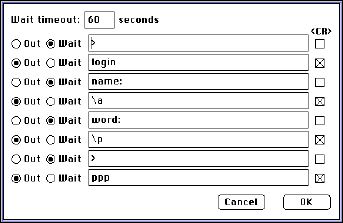
To change the default connection script so that entering the username and password are not required at every connection, replace the \a with the actual username and the \p with the actual password.
Warnings:
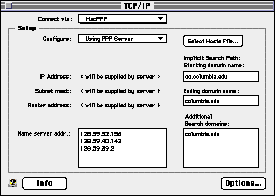
If you get an error reading, "The connection to cunix.cc.columbia.edu cannot be opened because there is no default name server," it means that the Domain Name Server information in MacTCP or TCP/IP may not be configured correctly.
|
|
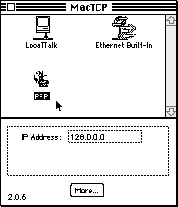
By default, PPP is selected, and the IP address displays as 128.0.0.0. If you have not installed the Dial-Up option, you will not see a PPP icon. If you don't have Ethernet on your Mac, you will not see the Ethernet icon. The specific icons (and names) that you see depend on your Mac's configuration. If the person has already opened a PPP connection, a complete IP address may show up in the IP Address: box. This address will change every time a new connection is changed. |
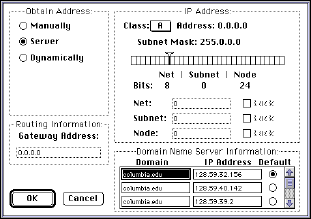
The only parts of this configuration that matter are that Obtain Address from Server is selected, and that the Domain Name Server Information be filled in correctly. By default the Gateway Address will display as 0.0.0.0; if a PPP connection has already been opened, a real address may appear here. Important Note: The settings in the panel entitled IP Address in the upper right quadrant of the window do not matter.
If Netscape freezes when you try to navigate the Web, there are two things you can try.
The table below lists settings for a selection of modems used commonly with Macintosh computers to help you configure FreePPP.
This column lists the speed that should be set in ConfigPPP, not the rated speed of your modem. (Using data compression allows modems to achieve actual speeds up to four times their rated speed. However, the capabilities of your computer's serial port, as well as other factors, can reduce this ideal maximum speed.)
Although in general a PPP connection requires the use of hardware flow control (CTS &RTS), some modems require special settings. These variations are noted in the table.
A modem initialization string is a command that you send to your modem at the beginning of a communication session which sets certain parameters in the modem. You need to find the string appropriate for your modem and enter it into the box in ConfigPPP labeled Modem Init.
Experience has taught us that every Macintosh needs a modem initialization string in its ConfigPPP settings! However, I have yet to see a setup that requires more than AT&Fn.
|
|
|
|
|
|
Apple Geoport |
57,600 |
CTS & RTS |
AT&F |
|
Global Village Teleport Silver |
19,200 |
CTS Only |
AT&F1 |
|
Gold |
38,400 |
CTS Only |
AT&F1 |
|
Gold II |
38,400 |
CTS Only |
AT&F1 |
|
Mercury |
57,600 |
CTS Only |
AT&F1 |
|
Platinum |
57,600 |
CTS Only |
AT&F1 |
|
Global Village PowerPort Mercury in PB 1xx |
57,600 |
CTS Only |
AT&F1 |
|
Mercury in PB 2xx or 5xx |
57,600 |
None |
AT&F |
|
Silver |
19,200 |
CTS Only |
AT&F1 |
|
Gold |
38,400 |
CTS Only |
AT&F1 |
|
Platinum |
57,600 |
CTS Only |
AT&F1 |
|
Megahertz CruiseCard 14.4 |
57,600 |
CTS & RTS |
AT&F |
|
Megahertz CruiseCard 28.8 |
57,600 |
CTS & RTS |
AT&F |
|
Supra 14.4 LC |
57,600 |
CTS & RTS |
AT&F1 |
|
SupraFAXModem v.32bis |
57,600 |
CTS & RTS |
AT&F1 |
|
SupraFAXModem 288 |
57,600 |
CTS & RTS |
AT&F1 |
|
USRobotics Sportster 14.4 |
57,600 |
CTS & RTS |
AT&F1 |
|
USRobotics Sportster 28.8 |
57,600 |
CTS & RTS |
AT&F1 |
|
USRobotics Sportster V.34 |
57,600 |
CTS & RTS
|
AT&F |
When all else fails, restart the Macintosh with standard Apple extensions only plus anything needed to use the modem, e.g. PowerBook PC Card Extension, and try the connection again. (Use the Extensions Manager control panel in System 7.5 or later. In System 7.1, you will have to do this manually unless you are running a non-Apple utility which handles extensions.) If the connection works, it means that one of the turned-off extensions is incompatible with the Internet Software.
For more information about solving INIT conflicts, see http://www.columbia.edu/acis/tech/mac/conflicts.html .
The most common mistake people make when configuring their Internet software for use with a NETCOM account is forgetting to precede the NETCOM user ID with a # (e.g., #myAccountID).
The only application configuration change required if you are connecting to the Internet via NETCOM rather than Columbia is your netnews server. For NETCOM connections, the news server should be set to nntp.ix.netcom.com in whatever software yo use to read netnews, e.g. Netscape Navigator.
For information about the NETCOM program at Columbia, see http://www.columbia.edu/acis/networks/netcom .
|
Last update: 3 February 1997 |
|
Page maintained by: Jill Williams |
212.854.1919[email protected]