
Academic Information
Systems



Windows NT/2000/XP Network Printing
In order to print to an AcIS printer from your residence hall room, you will need to have Windows configured to use DHCP. You will also need to be logged in as a member of the Administrators group.
Adding Print Services
- Choose Control Panel from the Start menu.
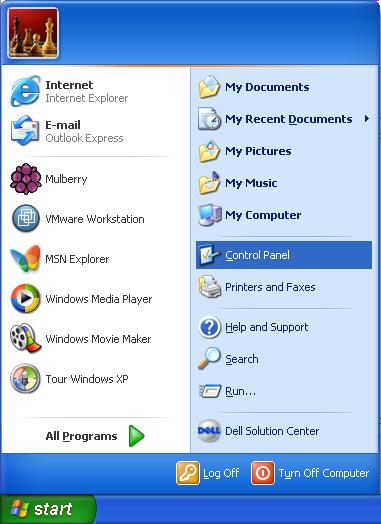
- Double-click Add or Remove Programs.

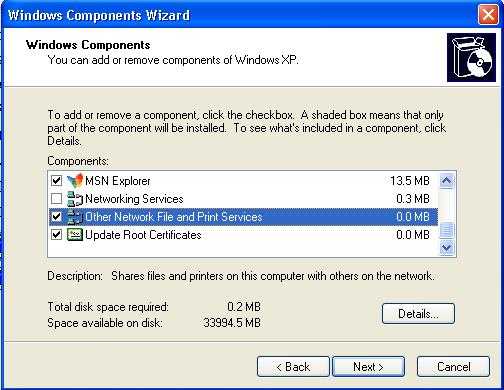
- Select Add/Remove Windows Components.

- Make sure that Other Network File and Print Services is selected and click Next.
Adding a Printer
- Choose Control Panel from the Start menu.
- Double-click Printers and Faxes.

- Select Add a printer.
- From the Add Printer Wizard click Next.
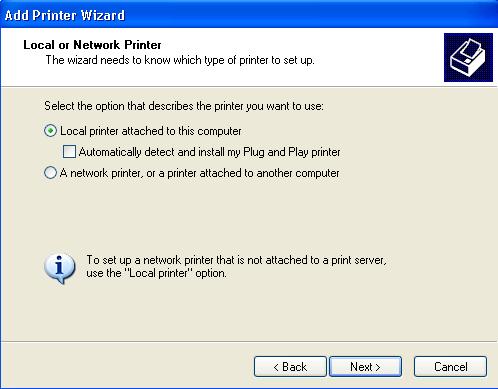
- Make sure that you are adding a Local Printer from the Add Printer Wizard and click Next.
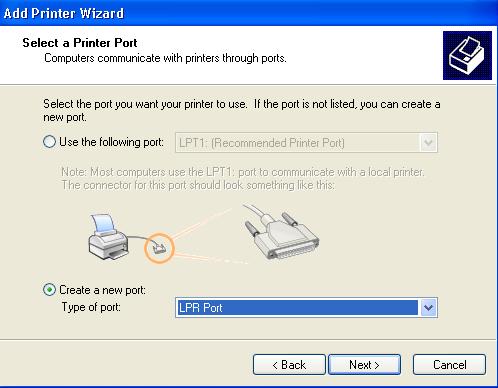
- Select Create a new port. Select LPR Port for the Type of port and click Next.
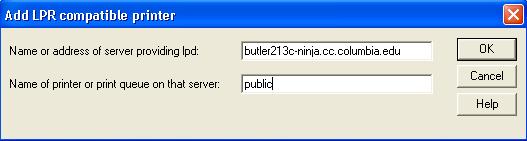
- Enter the LPR Server for the Host name. A list of the lpr servers can be found here. Enter public for the Printer name. Click OK.
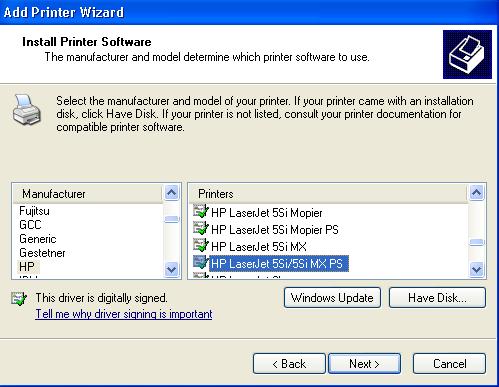
- You will be asked to choose a printer driver for this printer. A list of the manufactures and printers can be found here. Select the Manufacturer and the Printer and click Next.
- Enter a printer name that you would like to use and click Next.
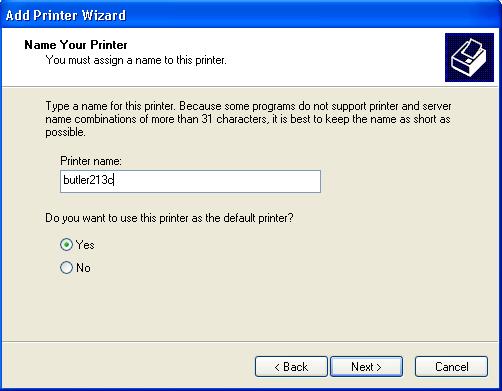
Click Next and then Finish to complete the setup. here for more information about NINJa printing.
Printing Your File
Once you have configured a printer you must still choose it as your file's destination when printing. Any files you print will be sent to the printer you choose under an application's Print Setup, which is normally found under the File drop down menu.
- Open the file that you plan to print.
- Select Print... from the File menu.
- Pick the printer you wish to print to from the drop down printer name menu.
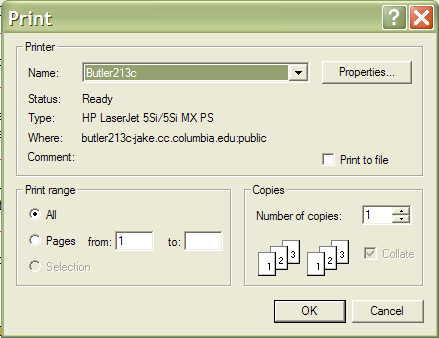
- You may select additional options such as double-sided printing by clicking on Properties.
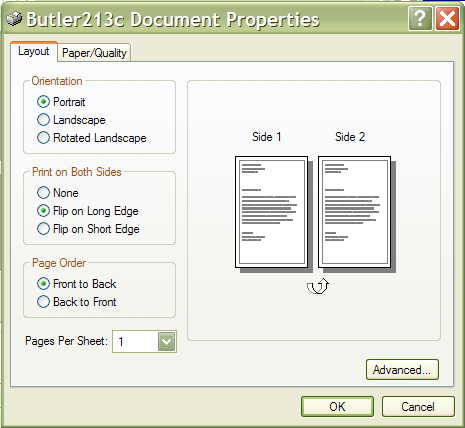
- Once the print dialog box disappears, you may go to the NINJa printer station and pick up your document. Click
If You Also Have a Local Printer...
If you also have a local printer connected to your PC, you may switch between the local printer and the NINJa printer at any time simply by changing the printer setting under the application's Print Setup dialog usually found under the File drop down menu.
RHNO Home | RHNO Printing | Mobile Network Service
Academic Information Systems
[email protected] - 22 July 2002 - 212 854.1919