
 Desktop
Reporting on Windows NT
Desktop
Reporting on Windows NTBack to Desktop Reporting
|
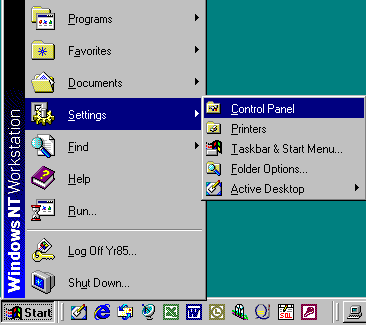
If you use a computer with Windows NT as its operating system, you can download and run the SIS Desktop Reports, but there is one extra configuration step. If you try to log into the Desktop Reports immediately after installation, you will probably receive an error message like the following: "A required .DLL file, PBVM60.DLL, was not found." In order to correct this problem, you will need to modify your Windows NT path statement to include the Desktop Reports system folder. If you use a Windows NT ID with administrator privileges, it's pretty easy to modify your path statement by following the steps listed on this web page. Begin by installing the Desktop Reports onto your computer and restarting your PC. Then click on the Start button, and choose Settings -> Control Panel as shown in the screenshot below:
From the Control Panel, click on the System icon:
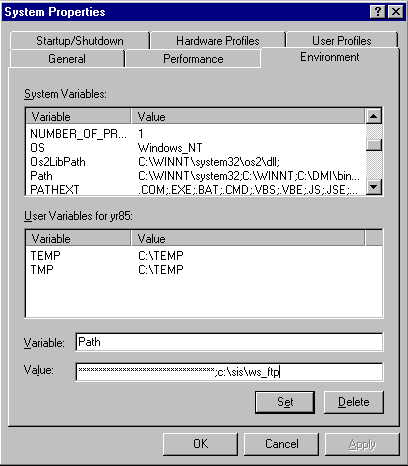
The System Properties box will display. Click on the Environment tab, and a screen like the following will appear:
In the box under the header "System Variables," click on the variable marked "Path." This should cause the Variable box to show the word "Path" and the Value box to show the current directories in the path statement. (If you click on the Path variable and the Variable and Value boxes remain blank, this probably means that you are using a Windows NT ID without administrator privileges.) In the Value box, append the text ;c:\sis\ws_ftp to the end of your existing path statement. Click on the Set button and then click on the OK button. You should now be able to successfully use the SIS Desktop Reports. If these steps do not work for you or if you have questions about this document, please send e-mail to [email protected] and an SIS Reporting Services Group staff member will be happy to answer your questions. |
|