 |
Introduction
The SIS Desktop
Reports is an application which allows Columbia administrators
to run reports on SIS data from their own desktops. These reports
include class rosters, lists of majors and concentrators, address labels
for various populations, and more. The application is downloaded
from the web, and no purchase of software is required. Read below
for requirements, instructions on the download and installation process,
and information on running the reports.
Requirements
Hardware: IBM-compatible 486 or higher.
Software: Windows 95, Windows 98, Windows ME, Windows NT, Windows 2000 or Windows XP.
Reporting ID: In order to retrieve data from your reports, you
must have a Report Server ID. To obtain this ID, please submit a
Report Server ID Request Form.
Installation
-
Download the installation program, saving it to your computer desktop.
SDR Application can be found under the Downloads Section.
-
When download has completed, double-click the downloaded icon. Follow
the instructions provided as the setup program does its work. After setup has completed, restart your system.
-
After restarting your system, you will find
a new folder on your desktop labeled "SIS Desktop Reporting". Double-click
this folder to view its contents.
-
Inside the new folder, double-click on the "Update SIS Desktop Reporting"
folder and then the "Update SIS Desktop Reporting" icon. This will
start an automated FTP session which will retrieve for you the latest SIS
reports and place them in the "SIS Desktop Reporting" folder found on your
desktop. This icon can be used any time you need to update all the
reports in all the sub-directories. Each sub-directory also has its
own update icon that will only update its own group of reports.
-
There is also a "Recycle Files" icon in the c:\sis folder. This icon
will erase all the reports files in all the sub-directories. You
should use this if the FTP process gets interrupted to clean out the directories
before reusing the "Update SIS Desktop Reporting" icon.
Using Reports
Once you have
downloaded and installed SIS Desktop Reporting, reports
are ready to run. In your c:\sis directory will be one system folder (called ws_ftp)
and 6 report folders: accounts, admissions, financial aid, housing,
miscellaneous and student records. Each report folder contains a Word document
explaining the function of each report in the folder. Within each report folder, reports
are categorized by report group. The following is a description of the report groups
within each report folder:
In the accounts folder:
accounting: Contains summary accounting reports
for Student Financial Services.
collections: Contains a report for Student Financial Services to obtain the
addresses of students in precollection.
exchange of fees: Contains reports of students cross registering
between Columbia and Teacher College of UTS.
sfs_holds: Contains reports listing the SIS users who have removed SFS holds
or registered a student who was on SFS hold.
third party billing: Contains reports listing students whose bill is handled by
a third-party payor.
tuition exemption: Contains reports of students receiving
tuition exemption and outside awards.
In the admissions folder:
admissions addresses: Contains address labels for applicants
and matriculants.
admissions main: Contains broad-range profiles
of applicants as well as reference reports for SIS admissions code tables.
credential tracking: Contains reports listing missing
credentials for applicants and reference reports for SIS credential code
tables.
demographics: Produces gender and ethnicity counts for
applicants.
embark: Contains reports for admissions offices who receive applications
via the Embark web site.
test scores: Provides test score information for applicants.
In the finaid folder:
debt management: Contains reports to aid in the advising of
financial aid recipients.
financial aid main: Contains a variety of reports
to be run by financial aid offices.
In the housing folder:
housing: Contains reports for use by Undergraduate Residence Halls.
In the records folder:
addresses: Contains programs to produce labels
by graduation term, school, department, program and other criteria.
alumni: Produces lists and counts of alumni by graduation
date.
course info: Contains print rosters for an individual
class or for all classes for a school, department, subject, or professor.
grades: Contains reports on grades and GPA's for students
in a school or department.
reference: Contains reports listing SIS codes which may
assist you in entering correct retrieval arguments.
student lists: Contains contact lists for undergraduate
majors & concentrators and for graduate students; provides school enrollment
reports.
In the misc folder:
utilities: RSS users may access this library to
change their password.
Other exe files which are used by one specific department
or school.
There are two files in the SIS Desktop Reporting folder for each report
group listed above. There is an .exe file which you will click on in order to
run the reports. Another file, with a file extension of ".ini," is a utility
program used by the .exe file, which you will not need to separately run.
To run an SIS Desktop Reporting report, simply double-click on the .exe
file's icon. The following box should appear:
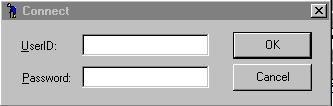
In the UserID field enter your Report Server ID. Then tab down
to the Password field and enter your password. It will not appear
as you typed it. Then click on the "OK" box. You should then
see a screen similar to the following one, from the alumni.exe:
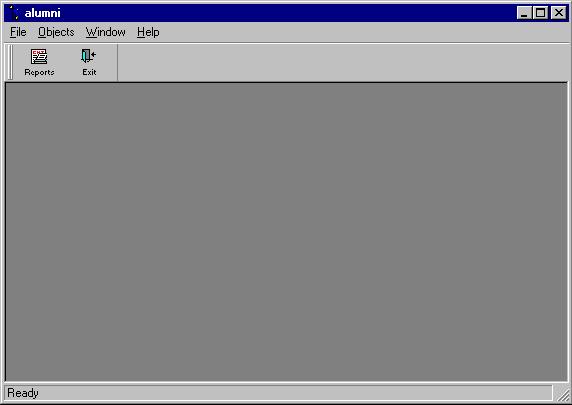
Click on the "Reports button. A box similar to that below will
be displayed, and you will see a list of programs available in that directory:

Please note, also, that there is also a brief description of the report
to the right of its name. You may need to use the scroll bar a the
bottom to see all of the contents of the description. Select the
report you want to run. Double-click on the report name. At
this point you will be asked for "retrieval arguments" in a run time parameter
box that will look like the following:

Formats for the argument values are in the Word documents that accompany
each directory. Enter your selection criteria, and then click "OK".
The main program box will then look like the following:
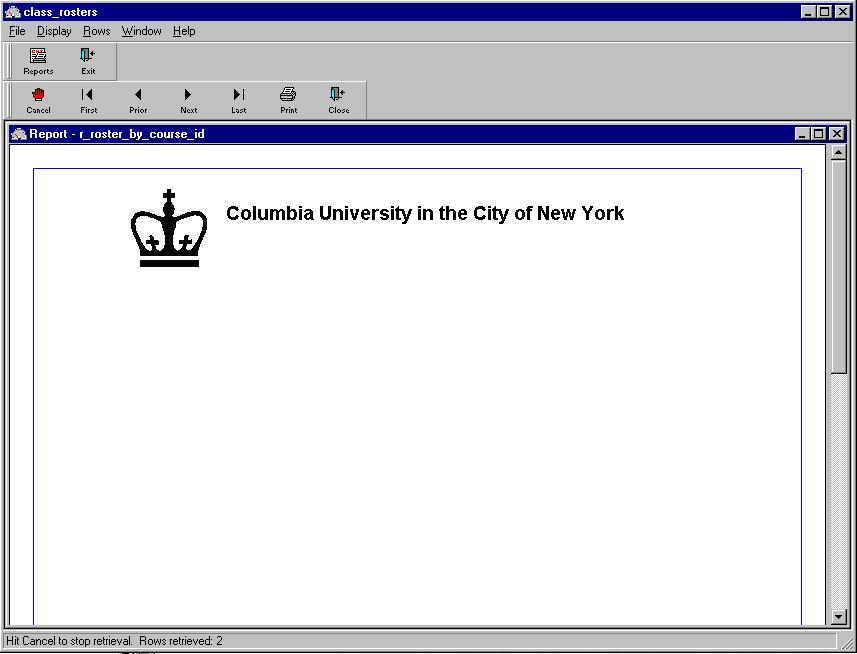
You will notice that at the top left corner there is now a box with
a little red hand and the word "Cancel" in it.

This is the button to press to cancel the report request. You
would use this button if you started to run a report and then realized
you made a mistake in entering one of the retrieval arguments. You
will also notice that on the lower left hand corner there is an informational
message that will tell you how many rows of information the report has
returned to your PC during and at the conclusion of retrieval process.

It is a good idea to keep an eye on this number. If the report
is retrieving many more rows than expected you can cancel it by hitting
the "Cancel" button, and then checking your retrieval arguments.
When the report is finished running the button with a red hand and the
word "Cancel" will change to a "Retrieve" button.

You can now print, save the report, or rerun with different retrieval
arguments. To print the report just hit the print button

and follow the print dialog box. If you wish to save the data,
you have a choice of more than one format to save the file in. To
do this you need to click on the file item at the top. When you do
you will get a sub-menu of items to select from. Select the "Save
Rows as ..." Item. A new box opens up.

You will first need to select in what format you want to save the data.
After you have selected the format you can then enter a file name.
Then click the save button and your file saved. When you are done
you can exit the program by clicking on the "Exit: button.

If you have any questions about running any of these reports that are
not answered by this document, please send email to [email protected].
|
|
